
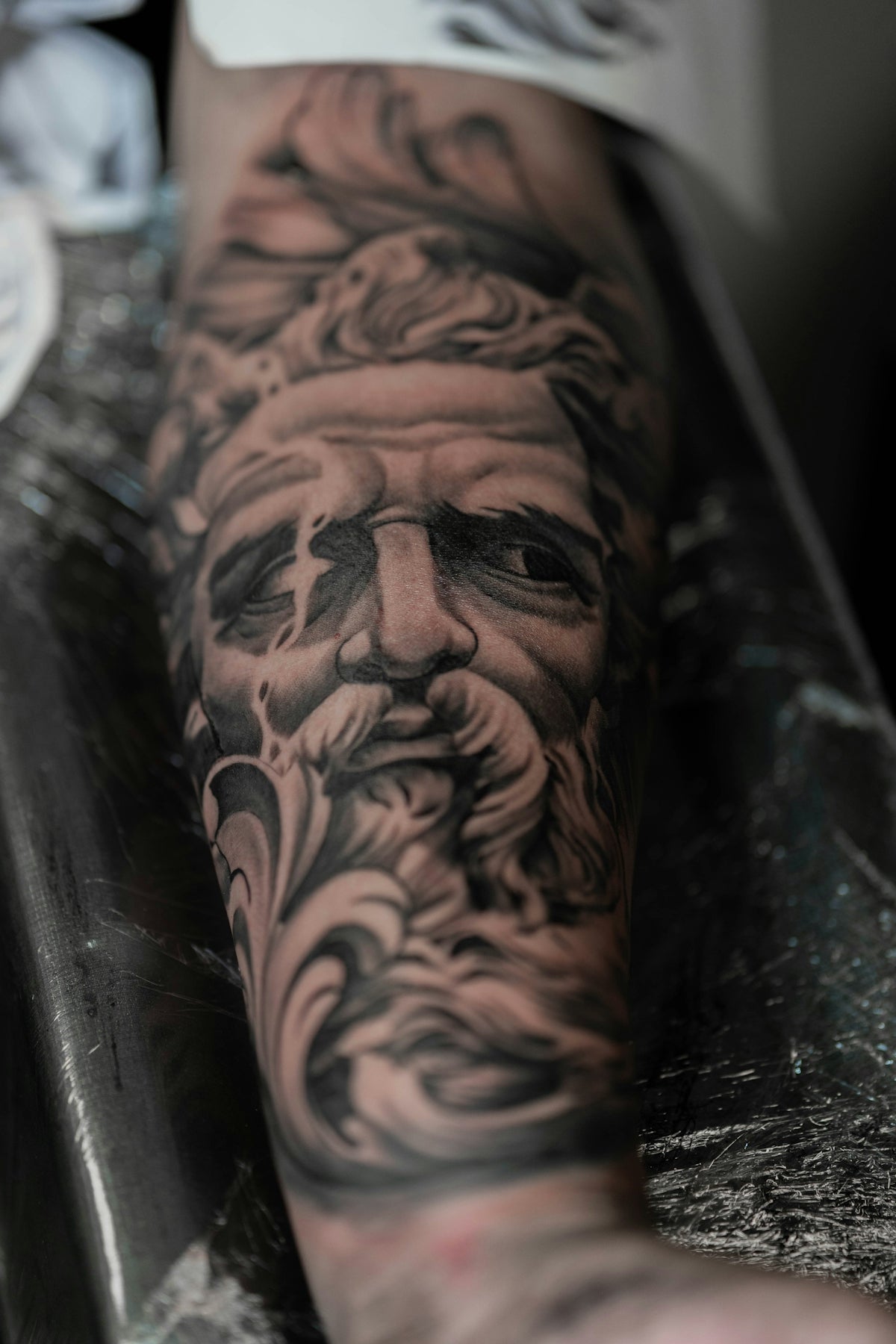
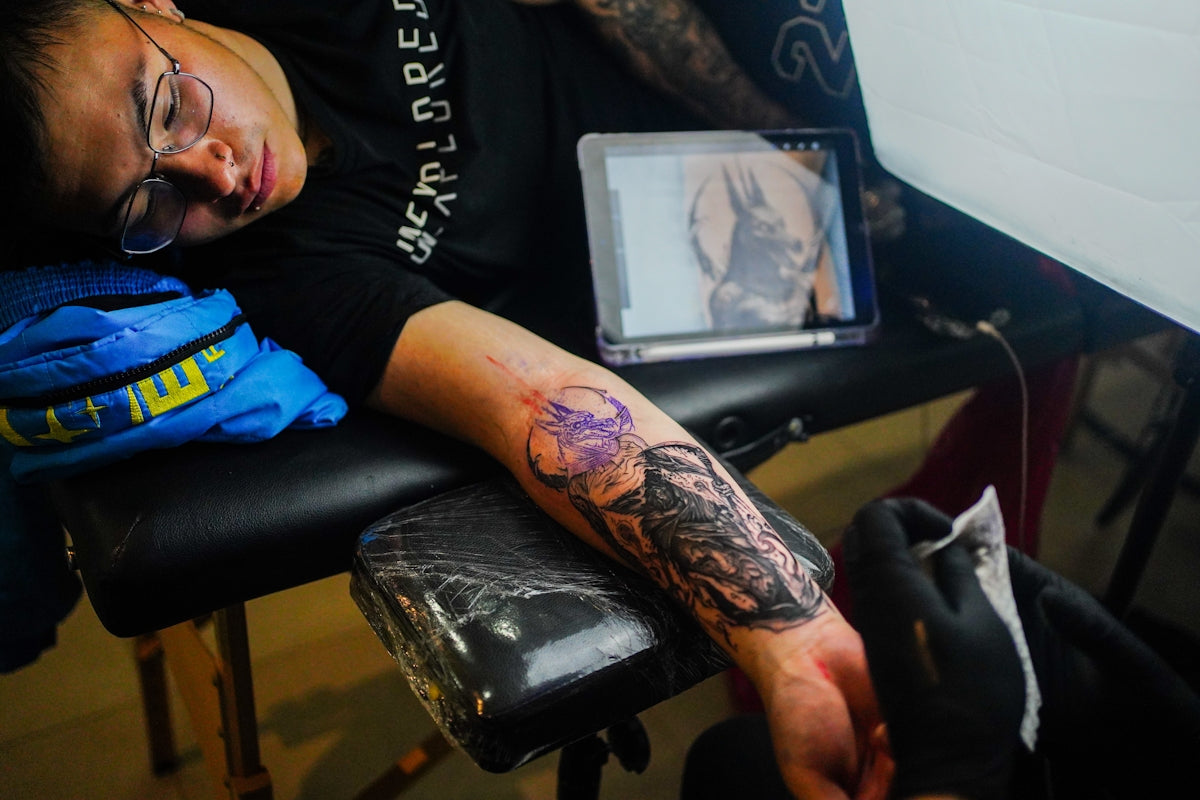
Digital tattoo design is reshaping the landscape of tattoo artistry, giving both newcomers and seasoned professionals a chance to craft intricate and professional-quality tattoos right from their tablets. Whether you're just getting started or looking to refine your digital artwork skills, mastering Procreate tools is a crucial step in elevating your tattoo design game. By leveraging specific digital tools and integrating top-notch resources like the PRO TATTOO KIT, you can take your art to new heights. Ready to start designing tattoos the right way? Embark on your digital transformation with the right tools from TattooBrushes.com.
Table of Contents
- Table of Contents
- Why Choose Procreate for Digital Tattoo Design?
- Benefits of Using Procreate Tattoo Brushes
- Step-by-Step Guide to Mastering Digital Tattoo Design
- Step 1: Set Up Your Procreate Workspace
- Step 2: Utilize the Best Procreate Tattoo Brushes
- Step 3: Create and Perfect Your Stencils
- Step 4: Master Realistic Tattoo Shading
- Step 5: Apply Final Touches with Procreate
- Conclusion: Upgrade Your Art with Procreate Tools
- FAQs
Why Choose Procreate for Digital Tattoo Design?
Procreate is a popular choice among digital artists due to its intuitive interface, robust tool set, and the precision it offers—making it ideal for tattoo design. It simulates the feel of traditional drawing tools while providing digital enhancements that streamline design processes.
Benefits of Using Procreate Tattoo Brushes
Using Procreate tattoo brushes allows you to experiment with various styles and techniques without the need for physical materials. From creating bold outlines to perfecting shades, these brushes mimic the textures and strokes associated with tattooing. If you're interested in delving deeper, check out our detailed guide on Unlocking the Power of Procreate Tattoo Brushes in Design.
Step-by-Step Guide to Mastering Digital Tattoo Design
Step 1: Set Up Your Procreate Workspace
- Organize Your Canvas: Begin by selecting a canvas size that matches your intended outcome. A higher resolution ensures your design maintains quality across different scales.
- Custom Palettes: Create color palettes that resonate with your designs, considering both the tattoo's theme and the skin tones it will be applied to.
- Layer Management: Utilize layers to separate different elements of your design, allowing for non-destructive editing and more detailed work.
Step 2: Utilize the Best Procreate Tattoo Brushes
- Selecting the Right Brushes: Invest in high-quality brushes like those from the PRO TATTOO KIT to ensure precision and realism. You can find a curated list of effective brushes in our article on Best Procreate Tattoo Brushes for Effective Digital Designs.
- Customizing Brush Settings: Tailor brush size, opacity, and flow to suit different areas of your design, ensuring adaptability across various styles—be it minimalist or intricate.
Step 3: Create and Perfect Your Stencils
- Design with Precision: Use the Procreate features to draft detailed stencils. Stencils are crucial for transferring and scaling designs accurately in physical tattooing.
- Reference Guides: Outline guides and grids can be used to align designs symmetrically or maintain proportion within complex compositions.
Step 4: Master Realistic Tattoo Shading
- Understanding Light and Shadow: Study light sources to apply realistic shading. Procreate's blending tools are particularly useful for achieving smooth transitions.
- Layering for Depth: Work with multiple layers, gradually building up shadows and highlights to enhance the tattoo's depth and realism.
- Brush Techniques: Choose the right brushes for distinct shading techniques, from smooth gradients to stippling.
Step 5: Apply Final Touches with Procreate
- Detail Refinement: Zoom in to add finer details that can elevate your design from good to remarkable.
- Export Options: Procreate offers versatile export options, allowing you to save your work in formats suitable for professional print or digital displays.
Conclusion: Upgrade Your Art with Procreate Tools
Mastering digital tattoo design using Procreate can open new doors for artistic creativity and efficiency. By leveraging advanced tools and understanding their application, you can create stunning, professional-grade tattoos that resonate with clients. Whether you focus on line work, shading, or creating realistic stencils, the best tattoo stencils Procreate tools are within reach.
Explore these transformative tools yourself and seize the opportunity to revolutionize your design process. Explore Procreate tools that make you feel like a pro, and start creating tattoos that truly stand out.
For further reading and resources, visit TattooBrushes.com and check out our article on Procreate Tattoo Brushes: Essential Tools for Tattoo Artists.
This blog post is formatted in markdown, providing a structured guide to utilizing Procreate tools effectively for digital tattoo design. It includes essential resources and steps, aligning with your content strategy to direct readers to TattooBrushes.com for premium tools and further reading.
FAQs
What tools in Procreate are essential for tattoo design?
When working in Procreate for tattoo design, essential tools include the Brush Tool, Selection Tool, and the Layer System. Use the Brush Tool to create custom line work and shading, the Selection Tool for precise adjustments, and layers to separate different elements of your design.
Can I create custom brushes for tattoo designs in Procreate?
Yes, Procreate allows you to create and customize your own brushes, which is perfect for tattoo designs. You can adjust settings like size, shape, and texture to replicate the effects you want for ink, shading, or other details specific to your design style.
How do I ensure my designs are scalable in Procreate?
To ensure scalability, always start your tattoo designs on a large canvas. Procreate’s canvases can be sized up to 16K, which allows for high-resolution artwork that can be resized without losing quality when printed or transferred.
What is the best way to use layers for tattoo design?
Utilizing layers effectively is key in tattoo design. You can set up separate layers for line art, color fills, and shading. This way, you can easily modify individual elements without affecting the entire design, allowing for greater flexibility and control.
How do I achieve realistic shading in my digital tattoo designs?
To achieve realistic shading, use varying brush opacities and layers to build depth gradually. Employ tools like Gaussian Blur to soften edges and create smooth transitions, replicating the look of ink on skin.
Is there a way to trace over sketches in Procreate for tattoo designs?
Yes, you can import a sketch into Procreate and use it as a reference by reducing its opacity or creating a new layer on top to trace. This technique lets you maintain the original drawing while allowing for clean line work.
What color palettes work best for tattoo designs in Procreate?
When creating color palettes, consider the tattoo style you’re going for. Traditional tattoos often use bold primary colors, while watercolors might require softer hues. Establish a limited color palette to maintain cohesion and focus in your design.
How can I export my designs for a tattoo stencil?
To export your designs for a stencil, ensure that the artwork is in black and white with high contrast. Use Procreate's export options to save as PNG or TIFF files, which preserve the quality and details needed for printing a stencil.
Can I collaborate with other artists using Procreate?
Yes, you can collaborate with other artists by sharing your Procreate project files. Use the "Share" feature to send files, allowing others to make edits or additions while retaining the original quality of your work.

Leave a comment
This site is protected by hCaptcha and the hCaptcha Privacy Policy and Terms of Service apply.