
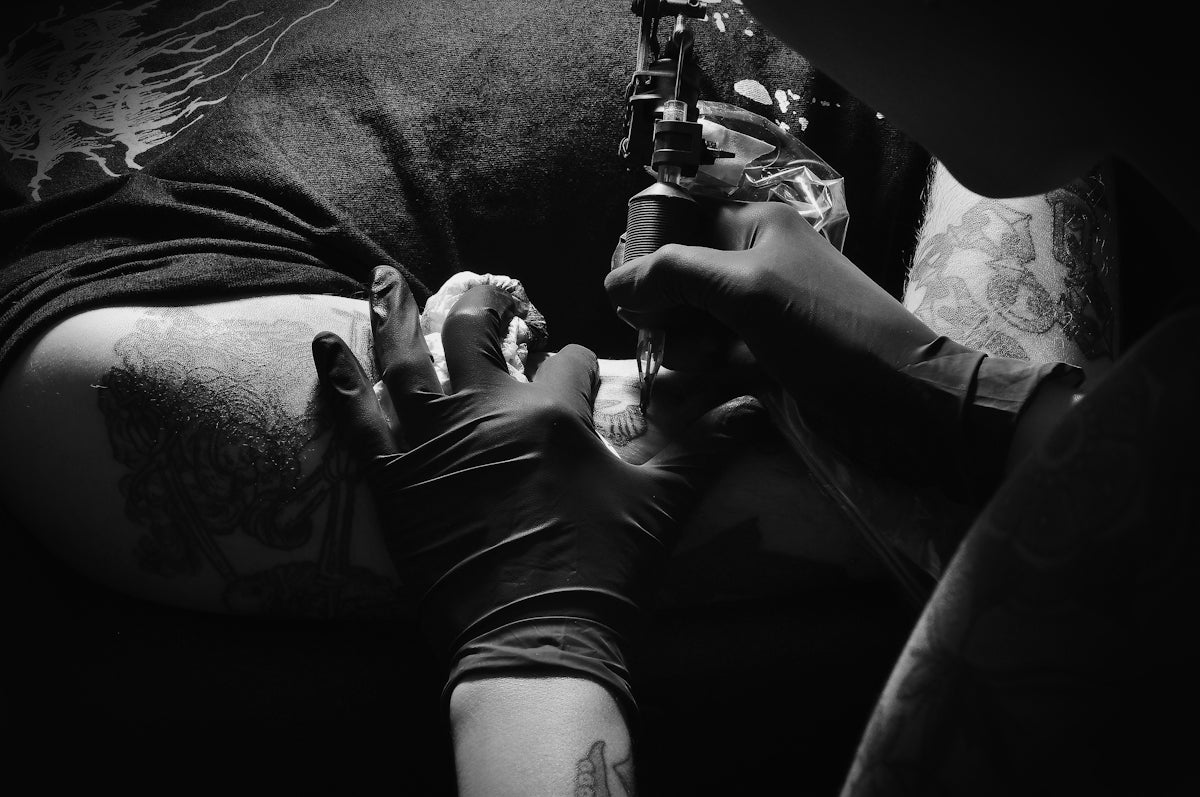
In the ever-evolving world of tattoo art, digital platforms like Procreate have revolutionized the way artists create and refine their work. Whether you're an aspiring artist eager to sharpen your skills or a seasoned professional aiming to upgrade your designs, having the right tools at your disposal is crucial. Dive into the world of Procreate tattoo tools, and discover how you can enhance your tattoo designs to a professional level. Ready to start designing tattoos the right way? Explore Procreate tools that make you feel like a pro.
Table of Contents
- Table of Contents
- The Role of Procreate in Digital Tattoo Design
- Understanding Procreate Tattoo Brushes
- Essential Tattoo Artist Tools for Procreate
- 1. The PRO TATTOO KIT
- 2. Realistic Shading Techniques
- 3. The Importance of Tattoo Stencils
- 4. Custom Palette Creation
- 5. Layer Management
- Getting Started: Step-by-Step Guidance
- Conclusion: Elevate Your Tattoo Art with the Right Tools
- FAQs
The Role of Procreate in Digital Tattoo Design
Procreate is a powerhouse for digital tattoo design, providing a versatile canvas for creativity. Its robust features allow artists to experiment with various styles, from intricate linework to sophisticated shading. To harness Procreate's full potential, it's essential to have a reliable set of tools that cater to specific tattoo design needs.
Understanding Procreate Tattoo Brushes
One of the building blocks of effective digital tattoo design is a set of high-quality Procreate tattoo brushes. These brushes mimic traditional tattoo techniques, allowing for seamless transitions between digital and real-world applications. The Procreate Tattoo Brushes for Professional-Grade Tattoo Art are tailored to meet the demands of professionals, offering precision and variability to enhance your artistic expression.
Essential Tattoo Artist Tools for Procreate
Every tattoo artist needs a curated collection of tools to achieve the best results. Let's explore some must-have Procreate tools that can significantly enhance your digital tattoo workflow:
1. The PRO TATTOO KIT
The crown jewel of any tattoo artist's digital toolkit is the PRO TATTOO KIT. This set includes a comprehensive range of brushes designed for every stage of the tattoo design process. From detailed linework to realistic shading, the PRO TATTOO KIT provides everything you need to bring your designs to life. Available exclusively at TattooBrushes.com, this kit is the ultimate solution for those looking to upgrade their art.
2. Realistic Shading Techniques
Mastering shading is pivotal for creating depth and realism in tattoo designs. Procreate offers multiple shading tools, but the key lies in understanding how to use them effectively. Learn more about Efficient Techniques for Realistic Shading Procreate Tattoos to transform your designs into visually striking artworks that stand out.
3. The Importance of Tattoo Stencils
Stencils are essential for accurate placement and consistency in tattoo design. The Best Tattoo Stencils Procreate for Accurate Placement provide a collection that allows artists to plan and position their designs with high precision. Incorporating stencils into your digital workflow ensures that your tattoo designs translate perfectly from screen to skin.
4. Custom Palette Creation
Creating a custom color palette tailored to your tattoo style is another pro tip for enhancing your designs. Procreate's color selection is intuitive, allowing you to build palettes that are vibrant and harmonized. Explore different combinations and save them for future projects to maintain consistency in your art.
5. Layer Management
Layer management is a crucial skill for any digital artist working on complex tattoo designs. Procreate's layer capabilities allow you to separate different elements of your design, edit them individually, and maintain organized workflows. Practice toggling layers to refine details or try new techniques without disrupting the entire design.
Getting Started: Step-by-Step Guidance
Whether you are just starting or are a seasoned pro, here's a step-by-step guide to using Procreate in your tattoo design process:
- Select Your Brushes: Begin by choosing the right set of Procreate tattoo brushes that match your design style. Experiment with different brushes to understand their individual textures and effects.
- Sketch the Outline: Use light strokes to sketch your design's outline. This draft will serve as the foundation for your tattoo, so take your time perfecting the shape and details.
- Apply Shading Techniques: Implement various shading methods using dedicated brushes from the PRO TATTOO KIT to add depth. Explore tutorials or resources on realistic shading to enhance your technique.
- Incorporate Stencils: Use Procreate's stencil functionality to test how different elements of your design interact. This step ensures proportion and accuracy in your digital tattoos.
- Finalize Your Design: Refine your design by making necessary adjustments to layers, colors, and details. Ensure that everything aligns with your artistic vision.
Conclusion: Elevate Your Tattoo Art with the Right Tools
To create awe-inspiring digital tattoo designs, investing in quality tools is non-negotiable. The PRO TATTOO KIT from TattooBrushes.com offers a comprehensive solution for artists of all levels aiming to produce high-quality work. Whether you're refining your skills or seeking that professional edge, the right tools can transform your artistry. Ready to take your tattoo designs to the next level? Explore Procreate tools that make you feel like a pro.
FAQs
What are the essential tools for a tattoo artist using Procreate?
To get started with Procreate, tattoo artists should invest in a reliable iPad, the Apple Pencil for precision, and a variety of brushes specifically designed for tattoo art. Additionally, a high-quality stylus can enhance the drawing experience.
Which Procreate brushes are best for tattoo designs?
The best Procreate brushes for tattoo designs typically include inking brushes for outlines, shading brushes for depth, and texture brushes for added detail. Look for brushes that mimic traditional tattoo techniques to create authentic effects.
How can I create custom brushes in Procreate for tattoo designs?
Custom brushes can be created by selecting a brush shape in Procreate and adjusting settings such as grain, shape dynamics, and rendering styles. Experimenting with these settings will help you design brushes that best fit your tattoo style.
Is there a specific Procreate setting that works best for tattoo artists?
While personal preference plays a significant role, many tattoo artists find that using the "8K" canvas size provides ample detail for intricate designs. Additionally, enabling "Pressure Curve" adjustments can enhance the sensitivity and response of the Apple Pencil.
How do I ensure my Procreate designs translate well to skin?
To ensure designs work well on skin, consider the scale and detail of your work. Use high contrast in your designs, avoid overly fine details that may blur once inked, and test your designs on different skin tones to see how colors hold up.
Can I use Procreate for traditional tattoo stencils?
Yes, Procreate is an excellent tool for creating tattoo stencils. You can utilize the 'Alpha Lock' feature to color your designs, then export them in a suitable format for printing as stencils to transfer onto skin.
What are some tips for practicing tattoo designs in Procreate?
Regular practice is key. Use reference images, try different styles, and don't hesitate to replicate existing tattoos for technique. Joining online tattoo communities can also provide constructive feedback on your work.
Are there specific color palettes tattoo artists should use in Procreate?
Yes, using a limited color palette that reflects your style can help create cohesive designs. Familiarize yourself with colors that translate well to skin tones and different tattoo inks to ensure your designs are visually appealing.
What is the best way to store and organize my Procreate tattoo designs?
Organizing your designs into folders by themes or styles in Procreate makes them easier to access. Additionally, consider exporting and saving your favorite designs in a cloud service or external storage for backup and easy sharing.

Leave a comment
This site is protected by hCaptcha and the hCaptcha Privacy Policy and Terms of Service apply.