
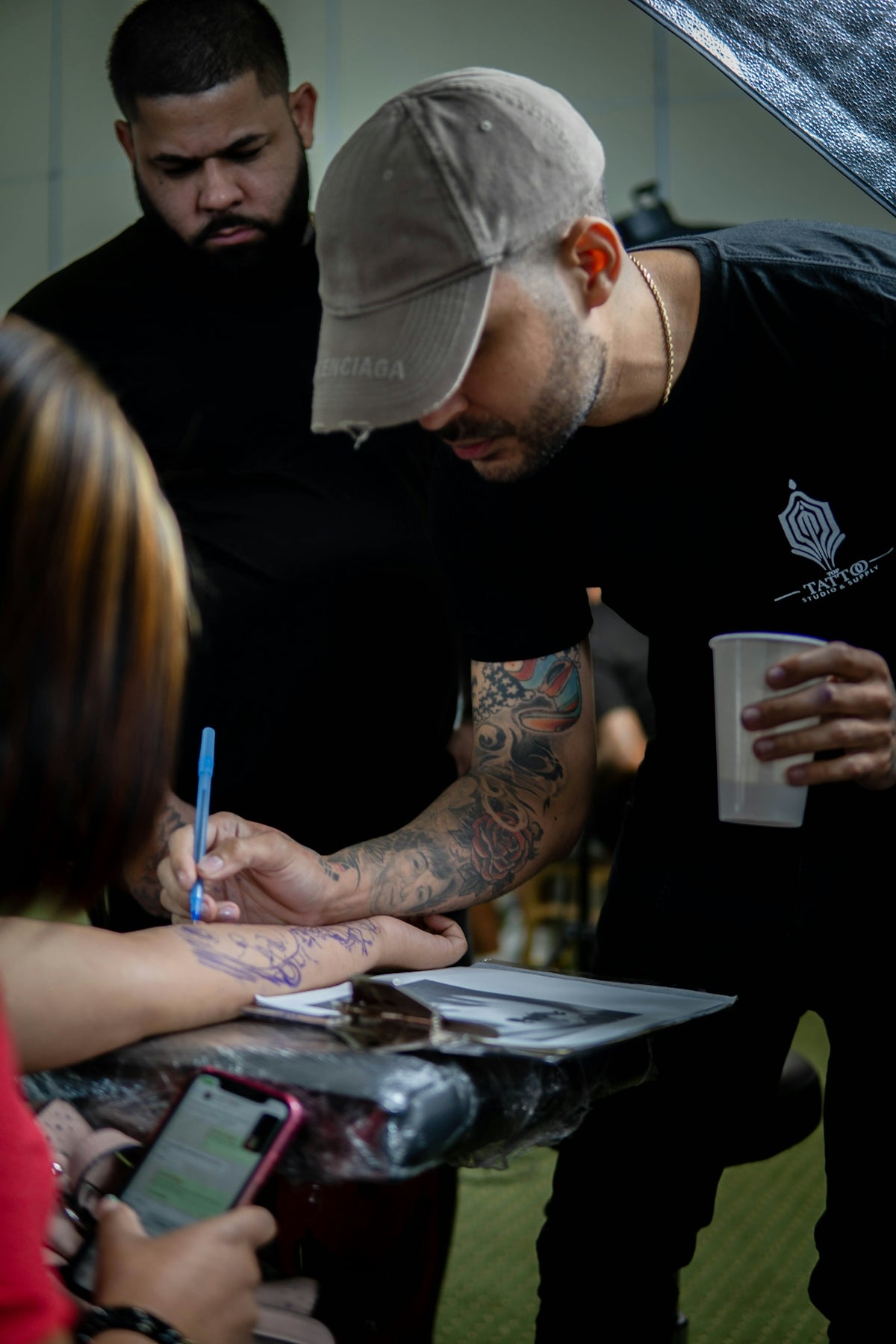
In an era where technology seamlessly intertwines with art, it's crucial to pair your artistic vision with the right digital tools. Whether you're an aspiring tattoo artist or a seasoned professional, mastering Procreate can elevate your artwork to unparalleled heights. Procreate isn't just a tool; it's an artist's best friend, especially when you're armed with the 'PRO TATTOO KIT' or equivalent tools offered by TattooBrushes.com. Make a leap towards excellence with these resources—Start designing tattoos the right way.
Table of Contents
- Table of Contents
- Why Choose Procreate for Tattoo Designs?
- Key Benefits of Procreate:
- Step-by-Step Guide to Creating Tattoo Designs with Procreate
- Step 1: Setting Up Your Workspace
- Step 2: Exploring the 'PRO TATTOO KIT'
- Step 3: Crafting Your Design
- Step 4: Digitizing Your Stencil
- Tips for Mastering Procreate Tools
- Conclusion
- FAQs
Why Choose Procreate for Tattoo Designs?
Procreate offers an extensive suite of features that are distinctly beneficial for tattoo design. Its ease of use, paired with powerful capabilities, offers both newcomers and veterans alike a platform to expand their creative horizons. If you're serious about elevating your designs, incorporating Procreate tattoo brushes into your workflow can drastically improve the quality of your art.
Key Benefits of Procreate:
- User-Friendly Interface: Intuitive design for an effortless creation experience.
- Highly Customizable Brushes: Access to an array of brush types specifically made for tattoo artists.
- Efficient Layering System: Makes intricate designs easier to manage and edit.
- Seamless Integration with Other Tools: Syncs well with other design applications, enhancing versatility.
Step-by-Step Guide to Creating Tattoo Designs with Procreate
Step 1: Setting Up Your Workspace
Begin by customizing your Procreate workspace to suit your design needs. Implementing a tailored workspace will streamline your process:
- Canvas Size: Choose a canvas that suits your medium, whether it’s for prints, digital showcases, or stencils. Standard tattoo designs commonly use a canvas size of 4000 x 3000 pixels.
- Color Profile: Opt for RGB which offers a wider color gamut suitable for digital displays.
Step 2: Exploring the 'PRO TATTOO KIT'
Integrating high-quality tools into your workflow is a game-changer. The 'PRO TATTOO KIT' available at TattooBrushes.com is crafted to cater to professionals seeking precision and excellence. This kit includes:
- Best Tattoo Stencils Procreate: Essential for creating detailed outlines.
- Procreate Tattoo Brushes: Perfect for fine lines and intricate patterns.
- Realistic Tattoo Shading Procreate: Delivers depth and dimension effortlessly.
For more on essential tools, check out Essential Tattoo Artist Tools: Procreate for Stencils.
Step 3: Crafting Your Design
Let’s break down the creation process:
- Initial Sketch: Use a basic brush from the 'Must-Have Procreate Tattoo Brushes for Professional Designs' to draft your ideas. The goal here is to maintain fluidity without worrying about perfection.
- Line Work: With your base sketch complete, switch to precision brushes to refine lines and enhance details.
- Shading and Textures: Incorporate brushes designed for realistic tattoo shading in Procreate. This step involves layering strokes for depth.
To understand which brushes are ideal, refer to Top Procreate Tattoo Brushes for Realistic Shading Art.
Step 4: Digitizing Your Stencil
Solid stencils are the backbone of a successful ink application. Procreate offers tools to transform your digital sketch into a practical stencil.
- Adjust Contrast: Increase contrast to define edges better.
- Convert to Line Drawing: Use the 'Auto Trace' feature for quick conversions.
This process makes it easy to transfer your designs digitally for further developments or direct use.
Tips for Mastering Procreate Tools
- Experiment with Brush Settings: Tailor brush settings like opacity, size, and pressure to suit your style.
- Utilize the Procreate Community: Engage with forums or groups for shared tips and tutorials.
- Regularly Update Tools: Ensure that your Procreate tools, such as the 'PRO TATTOO KIT', are up-to-date for optimal performance.
Conclusion
Creating digital tattoo designs with Procreate is not just an artistic endeavor but a step towards mastering modern tattoo artistry. With the right tools and techniques, you can push the boundaries of your creativity and precision. Empower your journey with the 'PRO TATTOO KIT' from TattooBrushes.com—a must-have for artists dedicated to excellence. Explore Procreate tools that make you feel like a pro.
Upgrading your digital tattoo design skills has never been this accessible. Delve into the potential of Procreate and witness a transformation in your art that appeals to both clients and connoisseurs. Welcome to a world where your digital artwork isn't just viewed; it's experienced.
FAQs
What is Procreate and why should I use it for digital design?
Procreate is a powerful digital painting app available on iPad that offers a wide range of tools and features for creating stunning artwork. It’s user-friendly and suitable for artists of all levels, making it a popular choice for digital designs, illustrations, and concept art.
Do I need an Apple Pencil to use Procreate effectively?
While you can use Procreate with your finger, an Apple Pencil greatly enhances the drawing experience. It provides better precision, sensitivity to pressure and tilt, and allows for finer details in your designs.
What are some essential Procreate tools I should start with?
Begin with key tools like the brush tool, layer options, color palettes, and selection tools. Familiarizing yourself with these will allow you to create more complex designs as you practice.
How can I create custom brushes in Procreate?
You can create custom brushes by selecting the Brush tool, tapping on the "+" icon to create a new brush, and adjusting settings such as shape, grain, and dynamics. This allows for a personalized touch to your artwork.
Is there a way to use Procreate for animation?
Yes! Procreate includes an animation feature called Animation Assist, which allows you to create simple frame-by-frame animations. This feature can add a dynamic element to your designs and help you explore motion in your artwork.
Can I import and export files easily with Procreate?
Absolutely! Procreate lets you import images and textures in various formats. You can also export your designs in different formats like PNG, JPEG, PSD, and even as a video or animated GIF, making it easy to share your work across platforms.
What tutorials or resources are available for learning Procreate?
There are numerous online tutorials, forums, and YouTube channels dedicated to Procreate. Exploring these resources can provide tips, tricks, and inspiration to help you master the app and improve your digital design skills.
How can I organize my artwork within Procreate?
Procreate allows you to create folders within the Gallery to organize your artwork into projects or categories. This helps keep your work organized and makes it easier to find and access specific designs later on.
What are some common mistakes to avoid when starting with Procreate?
Common mistakes include neglecting to use layers effectively, not taking advantage of shortcuts, and not experimenting with different brushes and styles. Take your time to explore the app's features and remember that practice is key to improving your skills.


Leave a comment
This site is protected by hCaptcha and the hCaptcha Privacy Policy and Terms of Service apply.