
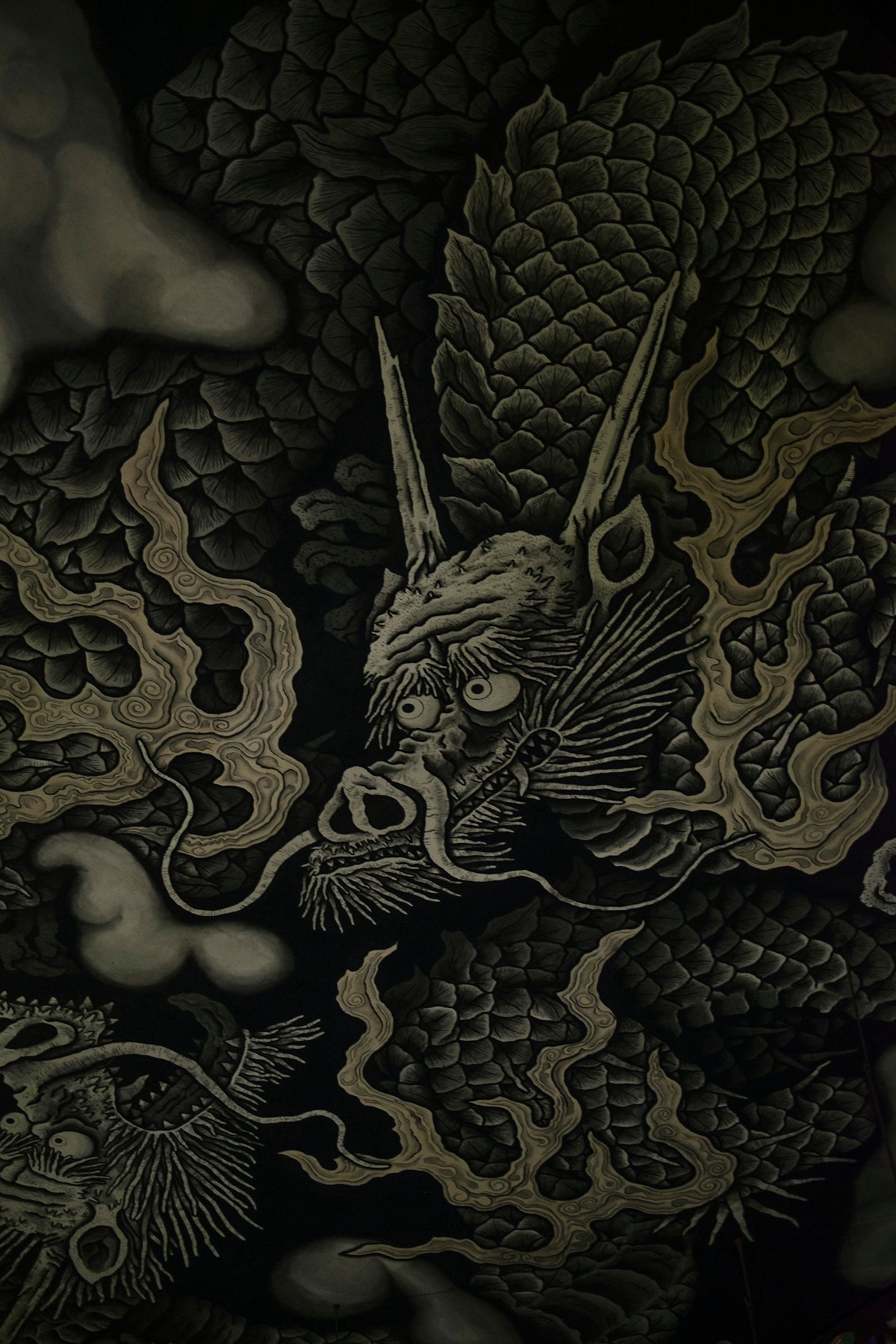
Welcome to the fascinating world of digital tattoo art, where the boundaries of creativity are constantly pushed and redefined. If you've been dreaming of creating tattoos with stunning realism, this step-by-step guide is tailored for you. Whether you are an aspiring artist or a seasoned professional, mastering realistic tattoo shading in Procreate can notably upgrade your art. Start designing tattoos the right way! Discover Procreate tattoo brushes that make precision and creativity possible, and enhance your skill set today by visiting TattooBrushes.com.
Table of Contents
- Table of Contents
- Why Procreate for Tattoo Design?
- Getting Started with Procreate
- Basic Setup
- Step-by-Step Guide to Realistic Tattoo Shading
- Step 1: Sketch Your Design
- Step 2: Setting Up for Shading
- Step 3: Realistic Tattoo Shading
- Step 4: Finishing Touches
- Mastering the Craft
- Conclusion
- FAQs
Why Procreate for Tattoo Design?
Procreate has established itself as a premier tool for digital tattoo design thanks to its powerful features and user-friendly interface. Artists can sketch, ink, and shade tattoos with Procreate's best tattoo stencils, mimicking traditional tattooing techniques. The customizability and versatility of Procreate make it a must-have in any tattoo artist's toolkit.
Getting Started with Procreate
Basic Setup
- Install Procreate: Ensure you have the latest version of Procreate installed on your iPad.
- Choose Your Canvas: Opt for a high-resolution canvas for better detail work. We recommend a canvas with a resolution of at least 300 DPI.
- Select Your Brushes: Download the 'PRO TATTOO KIT' from TattooBrushes.com. This kit includes high-quality Procreate tattoo brushes specifically designed for digital tattoo design.
For more insights on how to maximize the use of Procreate tools, visit our Guide to Digital Tattoo Design: Procreate Techniques.
Step-by-Step Guide to Realistic Tattoo Shading
Step 1: Sketch Your Design
- Conceptualize: Begin by brainstorming and sketching your design idea. Use the pencil brushes within Procreate to outline your concept.
- Layering: Create separate layers for outlines, shading, and highlights to ensure easy adjustments.
Step 2: Setting Up for Shading
- Base Colors: Apply flat colors on different layers using broad-tipped Procreate tattoo brushes.
- Texture Layer: Add a subtle texture layer beneath your main design layer. Texture adds depth and authenticity to your digital tattoos.
Step 3: Realistic Tattoo Shading
- Select Shading Brushes: Utilize the shading brushes from the 'PRO TATTOO KIT.' These brushes replicate the gradients required for realistic shading.
- Directional Shading: Begin by applying darker shades along the contours of the design. Use smooth, controlled strokes to mimic natural shadows.
- Gradation: Blend the shades carefully to achieve seamless transitions between light and dark regions. Adjust the opacity and pressure for varying effects.
Step 4: Finishing Touches
- Highlights: Introduce highlights using a finer brush with higher brightness settings. Highlights often bring the tattoo to life, reflecting light as it would on skin.
- Detailing: Review the entire piece for any rough edges or inconsistencies, making amendments where necessary.
For additional techniques on managing brushes and blending, refer to our article on Best Ways to Use Procreate Tattoo Brushes in Art.
Mastering the Craft
Realism in tattoos is not just about precision in creating lifelike imagery but about conveying depth and texture convincingly. The use of professional tools like the 'PRO TATTOO KIT' can significantly ease this process, providing you with the flexibility and control needed to bring your artistic visions to fruition.
Venture further into digital tattoo artistry with our comprehensive guide, How to Create Digital Designs with Procreate Tools.
Conclusion
Art is a journey, and every stroke you make with the intention to improve is a step in the right direction. Realistic tattoo shading in Procreate can elevate your craft to new heights, capturing realism and emotion in every piece. As you continue refining your skills, remember that the journey is as rewarding as the final masterpiece. Visit TattooBrushes.com to explore Procreate tools that make you feel like a pro. Your path to creating breathtaking, realistic digital tattoos starts here!
FAQs
What is Procreate and why is it useful for tattoo artists?
Procreate is a powerful digital illustration app designed for the iPad, widely used by tattoo artists for its versatile tools, intuitive interface, and ability to create detailed artwork. It allows for easy experimentation with designs, shading, and colors without the need for traditional tattooing supplies.
How can I achieve realistic shading in Procreate?
To achieve realistic shading in Procreate, use a combination of brush settings and layering techniques. Start by selecting an appropriate brush that mimics traditional shading practices, then adjust the brush opacity and size to create depth. Experiment with multiply layers for shadows and select lighter colors for highlights.
What brushes are best for realistic tattoo shading?
For realistic tattoo shading, brushes that mimic different textures are ideal. Look for soft round brushes, airbrushes, or specialized tattoo shading brushes within Procreate. You can also customize brushes or download sets created by other artists for varied effects.
Can I use Procreate for preparing tattoo stencils?
Yes, Procreate can be used to create digital stencils for tattoos. You can draw your design on a separate layer, adjust the opacity, and then print it out to transfer onto the skin, ensuring precise and clean outlines for tattooing.
What techniques should I use for blending colors in my tattoo designs?
Blending colors in Procreate can be achieved using the smudge tool, soft brushes, and layering techniques. Start with a base color, and gradually build up shades by layering and smudging for a smoother transition, mimicking the gradient effect found in traditional shading.
How do I maintain a natural look while shading tattoos in Procreate?
To maintain a natural look when shading, pay attention to light sources and how they affect the object's form. Use a limited color palette that mirrors skin tones and other realistic hues, and focus on gradients and gentle transitions instead of harsh lines.
Is there a way to test different color palettes in Procreate?
Yes, Procreate allows you to create and save different color palettes. You can select colors directly from your artwork, create an initial palette, and continuously experiment until you find the shades that work best for your tattoo shading.
Can I export my designs for use in other applications?
Absolutely! Procreate allows you to export your designs in various formats, including PNG and JPEG, making it easy to share or transfer your artwork to other applications or devices for further editing or presentation.
Is there a learning curve for beginners using Procreate for tattoo art?
While there may be a slight learning curve for beginners, Procreate is user-friendly and offers numerous resources like tutorials and community forums to facilitate your learning. With practice, you'll become more comfortable with the features and develop your own style.


Leave a comment
This site is protected by hCaptcha and the hCaptcha Privacy Policy and Terms of Service apply.