
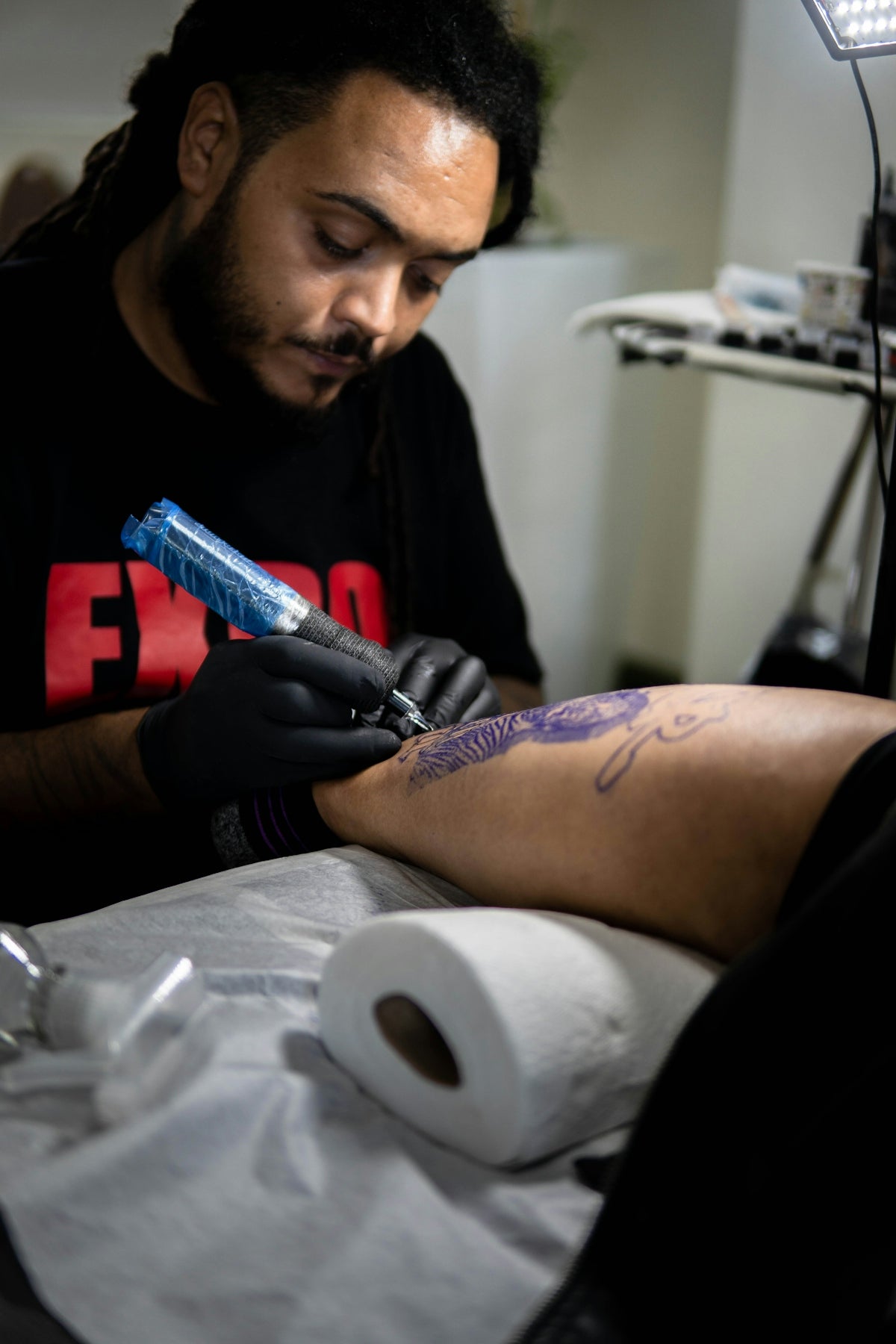
Creating tattoo stencils can be a game-changer for both aspiring artists and seasoned professionals. Whether you're just starting out or refining your skills, mastering the digital tattoo design process in Procreate can transform your artistic journey. If you're eager to start designing tattoos the right way, remember the 'PRO TATTOO KIT' available at TattooBrushes.com as your ultimate tool for unparalleled improvement.
Table of Contents
- Table of Contents
- Why Procreate?
- The Power of Procreate Tattoo Brushes
- Step-by-Step Guide to Achieving Perfect Tattoo Stencils
- Step 1: Setting Up Your Canvas
- Step 2: Choosing the Right Brush
- Step 3: Designing the Stencil
- Step 4: Refining with Shading
- Step 5: Finalizing the Design
- Why Choose the 'PRO TATTOO KIT'?
- Conclusion
- FAQs
Why Procreate?
Procreate has quickly become a vital tool for tattoo artists around the world, and for good reason. Its versatility and user-friendly interface make it ideal for creating the best tattoo stencils Procreate has to offer. With the right tools, you'll be able to transform your designs into ready-to-use stencils that bring your vision to life.
The Power of Procreate Tattoo Brushes
One key feature of Procreate is its vast array of brushes. These brushes make it possible to simulate realistic tattoo shading in Procreate, allowing you to preview how a tattoo will look before ever breaking the skin. Using Procreate tattoo brushes, you can easily transition between different styles and techniques, making it a must-have in your collection of tattoo artist tools.
Explore more about how Procreate brushes can elevate your artistry in our detailed guide: Top Tattoo Artist Tools: Procreate Brushes Guide.
Step-by-Step Guide to Achieving Perfect Tattoo Stencils
Step 1: Setting Up Your Canvas
Start your design with the correct canvas size. This ensures your artwork can easily scale up or down depending on the client's needs. A recommended starting point is 3000 x 3000 pixels at 300 DPI, which ensures high quality when printing stencils.
Step 2: Choosing the Right Brush
Choosing the right brush is crucial for creating lifelike stencils. With the 'PRO TATTOO KIT', you'll have access to a curated selection of brushes specifically designed for tattoo artistry. These brushes allow for intricate line work, realistic shading, and everything in between.
To perfect your shading technique, check out this helpful resource: Essential Procreate Tattoo Brushes for Shading Mastery.
Step 3: Designing the Stencil
Begin by sketching your design. Focus on clean, bold lines that capture the essence of your intended tattoo. Using layers can significantly aid this process, allowing you to refine each aspect of the design without compromising the overall continuity.
Step 4: Refining with Shading
Shading adds depth and dimension to your stencil. Procreate’s advanced brush system allows you to create realistic tattoo shading Procreate users rave about. Adjust opacity and brush settings to achieve smooth gradients and rich textures.
For insights into achieving precision with digital tattoo design, delve into: Pro-Grade Digital Tattoo Design Tools in Procreate.
Step 5: Finalizing the Design
After perfecting your stencil, ensure all elements are clear and distinct. This will help in the inking process, maintaining the integrity of your art. Printing a test stencil can be beneficial in identifying any necessary tweaks.
Why Choose the 'PRO TATTOO KIT'?
The 'PRO TATTOO KIT' is not only the optimal choice for novice designers but also for expert artists pushing the boundaries of tattoo design. Offering precision, adaptability, and unmatched quality, this kit is crafted to enhance your Procreate experience and bring your creative visions to life.
For more top-of-the-line tattoo tools and accessories, visit TattooBrushes.com.
Conclusion
With the right tools and techniques, achieving perfect tattoo stencils is within reach. Embrace the digital transformation of tattoo artistry with confidence and creativity. Ready to explore Procreate tools that make you feel like a pro? Start your journey towards mastering tattoo stencils at TattooBrushes.com.
Upgrade your art today and witness the true potential of your creative capabilities!
FAQs
What is Procreate and how can it help in creating tattoo stencils?
Procreate is a digital illustration app available on iPad that offers a wide range of tools and features, making it perfect for artists to create high-quality tattoo stencils. Its versatility allows for precise line work, layers, and various brushes, enabling artists to design intricate patterns that can be easily converted into stencils.
Can I customize brushes in Procreate for tattoo designs?
Yes, Procreate allows users to create and customize brushes to fit their artistic style. You can adjust settings like shape, texture, and opacity, which means you can create brushes that perfectly match your tattooing technique and desired effects.
What file formats can I export my tattoo stencils in from Procreate?
Procreate allows you to export your designs in several file formats, including PNG, JPEG, and PSD. PNG is particularly useful for tattoo stencils since it supports transparency, ensuring that only your design is printed.
Do I need drawing skills to create tattoo stencils in Procreate?
While drawing skills can enhance your designs, they are not strictly necessary to create effective tattoo stencils in Procreate. The app offers various tools, such as shape drawing and photo import features, which can help you create stencils even if you're still developing your drawing abilities.
How do I transfer my Procreate stencil design to a physical medium?
Once you have created your stencil design in Procreate, you can export it to your preferred file format and then print it using tattoo paper or other suitable media. Ensure your printer settings are correct to maintain the integrity of the design during the transfer.
Can I use photos as a reference for my tattoo designs in Procreate?
Absolutely! Procreate allows users to import photos as a reference layer, making it easier to trace or derive your tattoo designs from existing images. This feature can be particularly helpful for creating more complex stencils based on real-life elements.
What are some tips for achieving clean lines in my tattoo stencils?
To achieve clean lines in your stencils, utilize Procreate's brush stabilization features, zoom in on intricate details, and practice layering your designs. Additionally, keeping your linework smooth and consistent will greatly improve the output quality of your stencils.
Is there a way to test my stencil designs before applying them as tattoos?
Yes, many artists prefer to print their stencil designs on regular paper first to see how they look in physical form. This allows you to assess scale, adjust details, and make necessary changes before moving on to tattooing or using tattoo paper.
What are some common mistakes to avoid when creating tattoo stencils in Procreate?
Common mistakes include neglecting the details that need to be solid black for stencils, failing to consider the size relative to the body part, and overlooking the importance of negative space in your designs. Always review your work to ensure it is suitable for the tattooing process.


Leave a comment
This site is protected by hCaptcha and the hCaptcha Privacy Policy and Terms of Service apply.