
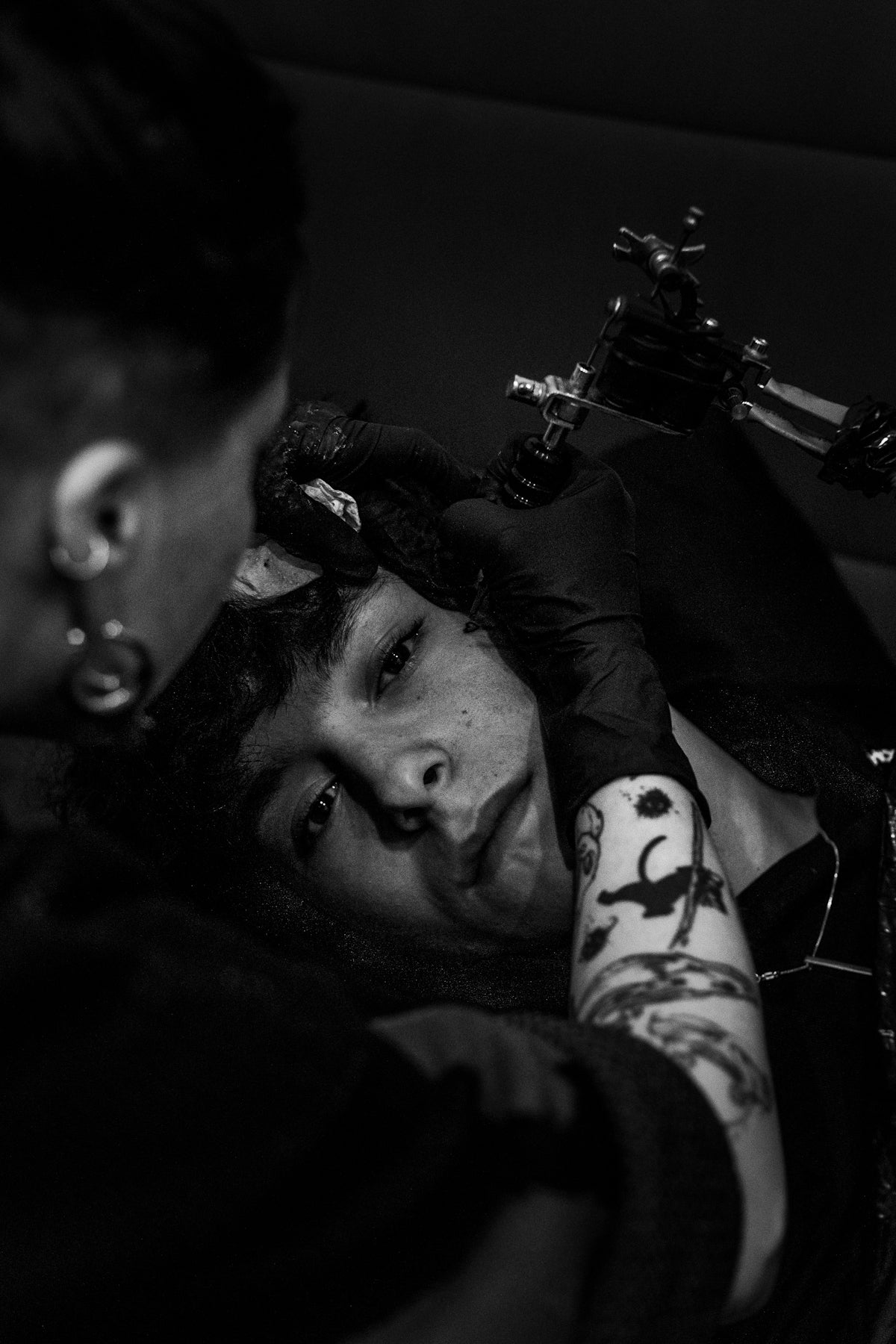
Tattoo art has evolved dramatically over the years, and with the advent of digital technology, artists now have a treasure trove of tools at their disposal. Whether you're an aspiring artist embarking on your tattoo journey or a seasoned professional eager to refine your craft, integrating digital tools like Procreate tattoo brushes can revolutionize your design process. Ready to take your tattoo artistry to the next level? Start designing tattoos the right way.
Table of Contents
- Table of Contents
- Understanding Procreate Tattoo Brushes
- Why Use Tattoo Brushes in Procreate?
- Creating Stencils with Procreate: Step-by-Step Guide
- Step 1: Setting Up Your Canvas
- Step 2: Choosing the Right Brushes
- Step 3: Sketching Your Design
- Step 4: Adding Details with Shading
- Step 5: Refining and Finalizing
- Tips for Aspiring and Professional Artists
- Conclusion: The Future of Tattoo Design
- FAQs
Understanding Procreate Tattoo Brushes
Procreate has become the go-to digital platform for tattoo artists, and its versatility allows for stunning, intricate designs. The app offers a wealth of tattoo brushes that mimic real-world tattoo techniques. But what sets the PRO TATTOO KIT apart is its unmatched precision and professional quality, making it the ultimate tool for artists aiming to upgrade their art.
Why Use Tattoo Brushes in Procreate?
The benefits of using Procreate tattoo brushes are vast:
- Versatility: Suitable for both line work and shading, offering a broad spectrum of creative possibilities.
- Customization: Allows for personalized settings to match your unique style.
- Efficiency: Digitally sketch and refine designs faster than traditional methods.
- Ease of Use: Intuitive interface ideal for artists at any stage of their career.
Interested in the ways Procreate tattoo brushes can enhance your digital tattoo design process? Check out our detailed guide How Procreate Tattoo Brushes Revolutionize Digital Designs.
Creating Stencils with Procreate: Step-by-Step Guide
Innovative digital tools have transformed the stencil creation process, making it more streamlined and accurate. Here's how to create perfect stencils with Procreate tattoo brushes.
Step 1: Setting Up Your Canvas
- Size Matters: Begin with determining the size of your tattoo design, and create a canvas that accommodates your detailed artwork.
- Resolution: Use a resolution of at least 300 DPI. This ensures your stencil maintains its clarity when printed.
Step 2: Choosing the Right Brushes
Explore the versatile PRO TATTOO KIT for a curated collection of the best tattoo stencils Procreate brushes. These brushes are designed to replicate the intricacies of tattoo art, enabling lifelike designs that can easily translate to skin.
Step 3: Sketching Your Design
- Outline First: Start by sketching the outline of your design using a smooth, fine-liner brush. The precision of Procreate brushes aids in creating clean, crisp lines.
- Layering: Use multiple layers to separate different elements of your design. This allows for easy adjustments without disturbing other parts of the stencil.
Step 4: Adding Details with Shading
- Employ the realistic tattoo shading Procreate brushes from the PRO TATTOO KIT to add depth and dimension to your stencil.
- Focus on light sources and shadowing to achieve a three-dimensional effect that will guide your inking process.
To master the art of shading, see our comprehensive walkthrough Master Realistic Tattoo Shading with Procreate Brushes.
Step 5: Refining and Finalizing
- Refine Details: Zoom in to enhance finer details such as textures and intricate line work. Adjust brush size as necessary to maintain clarity.
- Final Review: Before printing, step back and review your stencil at different zoom levels to ensure proportionate details.
Tips for Aspiring and Professional Artists
- Practice Regularly: The more you use digital brushes, the more intuitive they become, allowing you to focus solely on your creative vision.
- Learn from Experts: Take advantage of resources available at TattooBrushes.com to stay updated on industry trends and helpful tutorials.
- Collaborate and Share: Share your work with others for feedback and inspiration. Collaboration can spark new ideas and growth.
Conclusion: The Future of Tattoo Design
Digital tools offer a bridge between traditional artistry and modern innovation, underscoring the importance of high-quality tools in today’s tattoo industry. The PRO TATTOO KIT, with its professional standard, stands out as the ultimate toolkit for artists intent on creating perfect tattoo stencils with Procreate.
Ready to elevate your tattoo designs? Explore Procreate tools that make you feel like a pro today, and invest in tools that enhance both your skill and your creativity.
By integrating these practical techniques and professional tools into your creative process, you're set to transform your tattoo designs and truly upgrade your art. For additional tips and in-depth discussions, don't miss our article on Essential Procreate Tattoo Brushes for Stunning Design.
FAQs
What are Procreate tattoo brushes?
Procreate tattoo brushes are digital brushes specifically designed for use in the Procreate app, allowing artists and tattoo designers to create intricate and customizable stencil designs for tattoos.
How do I create a stencil in Procreate?
To create a stencil in Procreate, you can start by sketching your design on a new canvas, then use the selection and cut tools to isolate the part you want to turn into a stencil. You can also adjust the opacity and layer settings to refine your stencil design.
Can I use traditional tattoo designs with digital brushes?
Yes, you can use traditional tattoo designs with digital brushes by scanning or importing your hand-drawn designs into Procreate. From there, you can trace over them or modify them using the tattoo brushes to make them suitable for digital stenciling.
What is the advantage of using Procreate for stencil creation?
Using Procreate for stencil creation allows for flexibility and precision that traditional methods may not provide. You can easily adjust designs, experiment with colors, and make quick changes without starting from scratch, saving time and improving accuracy.
Are there specific Procreate settings I should use for creating stencils?
While there are no strict settings, using a canvas size of at least 300 DPI is recommended for better quality. Additionally, utilizing layers effectively can help you build your stencil without compromising the original design until you’re ready to finalize it.
Can I share my Procreate stencil designs with other artists?
Absolutely! You can export your finished stencil designs in various formats such as PNG, PDF, or JPEG, and share them with other artists for use in their projects, or even upload them to tattoo communities or social platforms.
Do I need to purchase Procreate tattoo brushes separately?
Yes, most Procreate tattoo brushes are available for purchase from various online sources. However, there are also free brush packs available that you can explore to find styles that suit your needs.
Is there a way to make my stencil designs more detailed in Procreate?
Yes, you can increase the detail in your stencil designs by adjusting the brush settings, such as taper, opacity, and size dynamics. Experimenting with different brush types and layering techniques can also enhance the detail and richness of your stencils.
What are some tips for achieving clean lines in my stencils?
To achieve clean lines in your stencils, use a hard-edged brush for outlining, zoom in for precision, and make use of the stabilization settings available in Procreate. Additionally, take your time and consider practicing your strokes to build confidence and control.

Leave a comment
This site is protected by hCaptcha and the hCaptcha Privacy Policy and Terms of Service apply.