
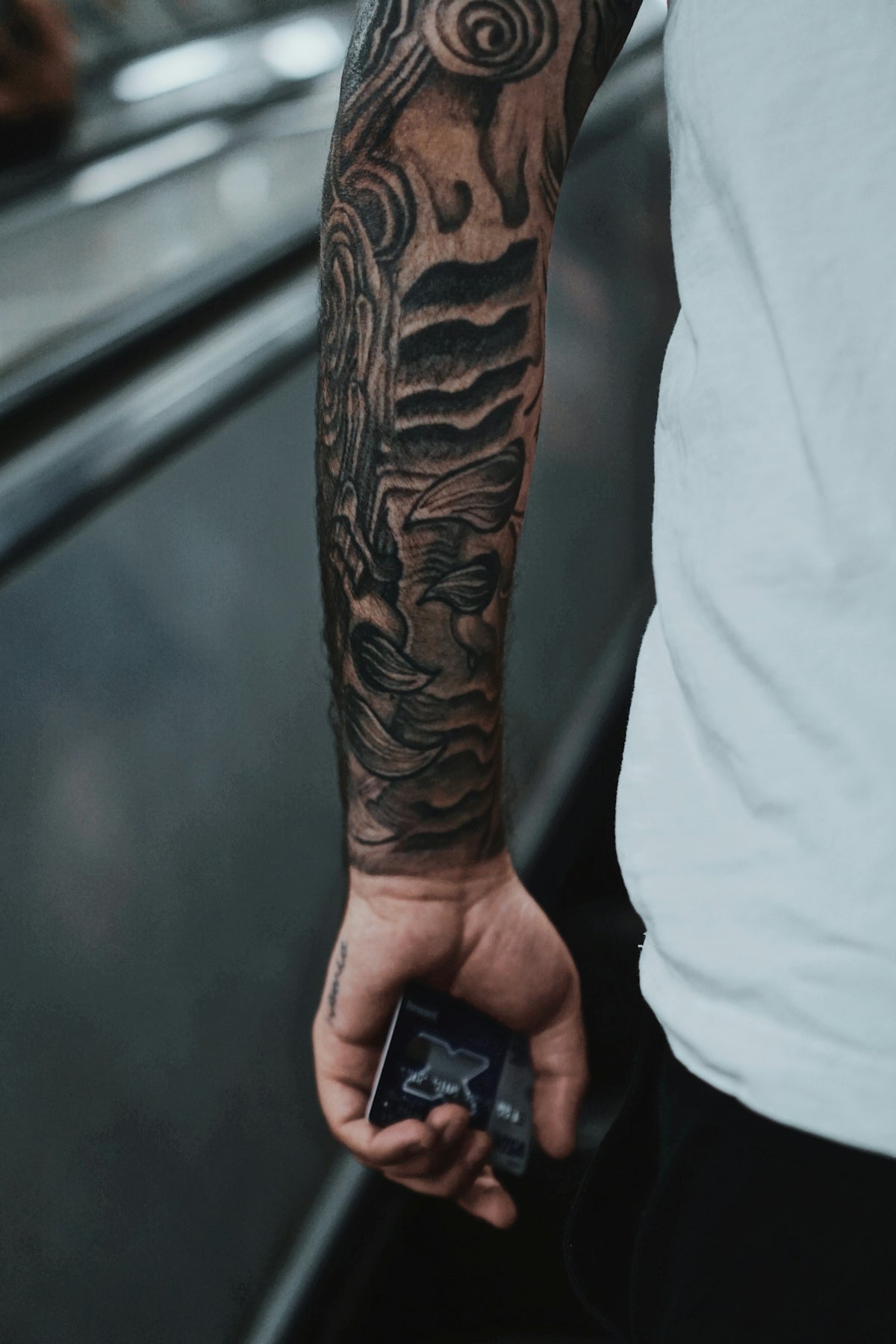
In the realm of tattoo artistry, where tradition meets innovation, digital platforms like Procreate have revolutionized how tattoo designs are conceived and refined. Whether you are just beginning your artistic journey or are a seasoned tattoo artist looking to polish your digital technique, embracing the right Procreate tools is pivotal to upgrade your craft. The Pro Tattoo Kit from TattooBrushes.com stands as the ultimate solution, ensuring your artwork not only stands out but also resonates with professional authenticity. Start designing tattoos the right way today and elevate your creations to whole new heights.
Table of Contents
- Table of Contents
- Why Digital Tattoo Design with Procreate?
- Key Features of Procreate for Tattoo Artists
- Selecting the Best Procreate Tattoo Brushes
- Types of Brushes Available
- Step-by-Step Guide to Elevating Your Art
- Best Tattoo Stencils Procreate Offers
- Encouragement for Aspiring Artists and Seasoned Pros
- FAQs
Why Digital Tattoo Design with Procreate?
Digital tattoo design offers a myriad of advantages over traditional pen-and-paper methods. With Procreate on your side, you have access to a versatile toolbox, including Procreate tattoo brushes, realistic shading techniques, and the best tattoo stencils available. This accessibility empowers artists to experiment with intricate designs before bringing them to life on a client’s skin. The result? A flawless, well-executed tattoo.
Key Features of Procreate for Tattoo Artists
- Flexibility and Portability: Procreate allows you to work anywhere, whether you're in the studio or on the move.
- Layers and Blending Modes: Offers enhanced control over design elements, ideal for creating detailed and complex tattoos.
- Extensive Brush Selection: From basic outlines to realistic shading options, each brush serves a purpose.
For those keen on learning more about using Procreate tattoo brushes professionally, check out our guide here.
Selecting the Best Procreate Tattoo Brushes
Selecting the appropriate brushes is fundamental for creating professional-grade tattoo designs. The Pro Tattoo Kit offers a meticulously curated set of tools designed to meet the needs of various styles—whether you're crafting the sharp lines of a tribal tattoo or the soft shades of a realistic portrait.
Types of Brushes Available
- Liner Brushes: For clear, sharp outlines.
- Shading Brushes: Allow you to master realistic tattoo shading effortlessly.
- Texture Brushes: Help in achieving the subtle nuances and depths needed in complex designs.
For more insights on mastering realistic tattoo shading techniques, visit our detailed blog post on Master Realistic Tattoo Shading Techniques with Procreate Tattoo Brushes.
Step-by-Step Guide to Elevating Your Art
No matter your current skill level, these steps will guide you through upgrading your digital designs:
- Setting Up Your Canvas: Open Procreate and set up your canvas with the resolution and dimensions needed for tattoo designs. For beginners, a canvas of 300 DPI is optimal for quality prints.
- Selecting Brushes: Choose from the Pro Tattoo Kit. For detailed work, start with liner brushes to outline your design.
- Exploring Shading Techniques: Integrate advanced shading techniques to add depth and realism. Utilizing the right shading brushes can make or break your design. Get advanced tips through our Advanced Digital Tattoo Shading Techniques with Procreate.
- Using Layers Like a Pro: Leverage layers for different elements of your design for ultimate control over your artwork’s composition.
- Adding Final Touches: Finalize your piece with texture brushes that add the finishing touches, making your design ready for the skin.
Best Tattoo Stencils Procreate Offers
Stencils can act as a roadmap for tattoo designs, aiding in precision and uniformity. The Pro Tattoo Kit includes the best stencil creation tools, allowing you to draft accurate layouts efficiently.
Encouragement for Aspiring Artists and Seasoned Pros
Upgrading your art is not just about acquiring new tools but about embracing new techniques and evolving continuously. It’s about blending creativity with precision and leveraging technology to sharpen your craft. Whether you’re an aspiring artist looking for a solid foundation or a seasoned pro aiming for cutting-edge proficiency, Procreate tools can enhance your artistic journey.
Explore a world of art that marries tradition with technology. Explore Procreate tools that make you feel like a pro and see how your designs can evolve into captivating works of art.
For the comprehensive toolkit and resources tailored for tattoo artists, visit TattooBrushes.com.
FAQs
What is Procreate, and why is it popular among tattoo artists?
Procreate is a powerful digital illustration app for iPad that allows artists to create stunning designs with a wide range of tools and features. Tattoo artists love it for its intuitive interface, flexibility, and ability to create detailed and layered artwork, making it ideal for crafting unique tattoo designs.
What are some essential Procreate tools for tattoo design?
Key tools in Procreate for tattoo design include the brush library for different textures, the color picker for precise shades, and layers for managing different elements of your design. Additionally, features like selection tools and blending modes can help refine your artwork.
Can I use custom brushes in Procreate for tattoo designs?
Absolutely! Custom brushes can enhance your tattoo designs by allowing you to achieve specific effects, textures, and styles. You can create your own brushes or download thousands of options created by other artists to suit your design needs.
How can I ensure my tattoo design translates well from digital to skin?
To ensure a smooth transition from digital to skin, consider the size and detail of your design. Use bold lines and limited intricate details, as they can blur over time. Testing your design on paper or consulting with a tattoo artist before inking can also be beneficial.
What size canvas should I use in Procreate for tattoo designs?
A larger canvas size is generally recommended for tattoo designs to capture more detail and provide flexibility. A canvas size of at least 3000 x 3000 pixels is a good starting point, but adjust based on your specific design and the size of the tattoo.
Can I export my Procreate designs for printing or tattooing?
Yes, you can export your designs in various formats such as PNG, JPEG, or PSD. Many tattoo artists prefer to use PSD files as they maintain layering, allowing for easy modifications during the tattooing process.
How do I use layers effectively in Procreate for tattoo designs?
Layers in Procreate allow you to separate different elements of your design, making it easier to edit and manipulate. Use layers for backgrounds, outlines, colors, and effects to maintain organization and flexibility while working on complex designs.
Are there any tutorials available for improving my tattoo design skills in Procreate?
Yes, many online resources, including video tutorials and art communities, offer guidance on using Procreate specifically for tattoo design. These resources can help you learn new techniques, understand tool functionalities, and develop your own style.
What are some tips for coloring my tattoo designs in Procreate?
When coloring tattoo designs in Procreate, consider using a limited color palette to maintain cohesion. Experiment with blending modes and transparency to achieve depth, and always preview your colors against dark and light backgrounds to ensure visibility when tattooed.

Leave a comment
This site is protected by hCaptcha and the hCaptcha Privacy Policy and Terms of Service apply.