
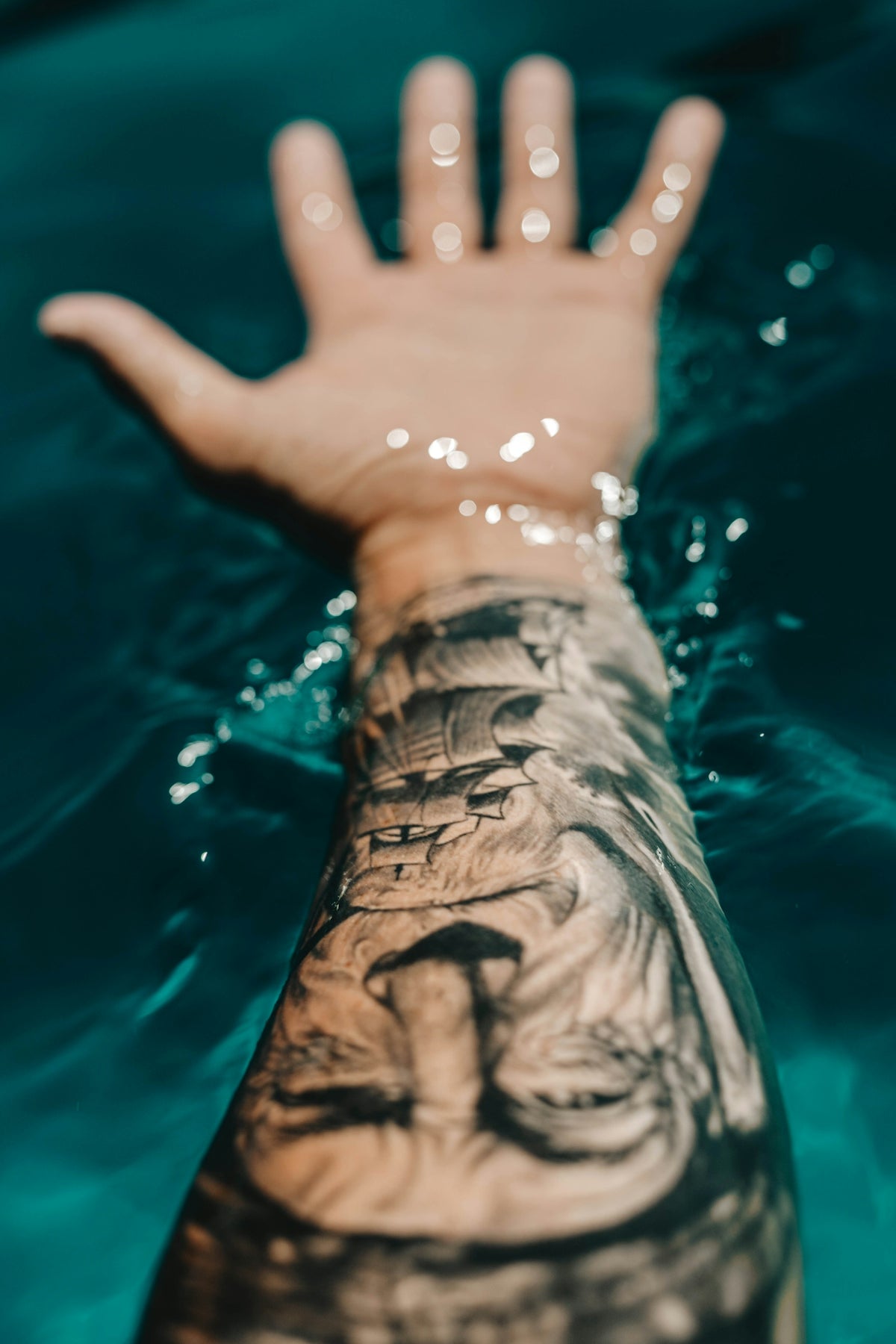
In today's digital age, mastering the art of tattoo design means embracing both traditional skills and modern technology. For tattoo artists, whether you're just starting or have years of experience, digital design platforms like Procreate have redefined how art is created and shared. The ability to create highly detailed, realistic designs on screen before bringing them to life on skin is nothing short of revolutionary. This blog will guide you through effectively using Procreate tattoo brushes and digital tattoo design to achieve professional results with ease. Start designing tattoos the right way by exploring Procreate tools that make you feel like a pro by visiting TattooBrushes.com.
Table of Contents
- Table of Contents
- Understanding the Procreate Platform
- Setting Up Procreate for Tattoo Design
- The Role of Procreate Tattoo Brushes
- Creating the Best Tattoo Stencils in Procreate
- Step-by-Step Guide to Stencil Creation
- Enhancing Designs with Realistic Tattoo Shading in Procreate
- Techniques for Realistic Shading
- Tattoo Artist Tools: Elevate Your Craft
- Conclusion: Upgrade Your Art Today
- FAQs
Understanding the Procreate Platform
Procreate has become the digital playground for artists worldwide due to its versatile interface and powerful tools. It's user-friendly yet packed with professional features perfect for sketching, illustrating, and painting. For tattoo artists, using Procreate means endless possibilities for exploring new styles and refining old ones without the mess of physical media.
Setting Up Procreate for Tattoo Design
Before diving into creating your masterpieces, setting up your Procreate workspace is crucial. Begin by configuring your canvas to match the dimensions commonly used in tattoo stencils. This initial step ensures a seamless transition from screen to skin. Utilizing layers appropriately allows you to separate and refine various elements of your design easily.
The Role of Procreate Tattoo Brushes
Using the right Procreate tattoo brushes can significantly elevate your digital tattoo design process. Brushes tailored specifically for tattoos offer precision and emulate the different effects you can achieve with needles on skin. Whether you're striving for bold lines or detailed shading, there are brushes suited for every need.
Visit our article on Five Essential Procreate Tattoo Brushes for Beginners to learn more about selecting the brushes that match your style and requirements.
Creating the Best Tattoo Stencils in Procreate
Stencils are a foundational part of tattooing, enabling artists to transfer designs accurately from paper or screen to skin. When working in Procreate, you have the unique advantage of duplicating and modifying stencils quickly, making it a perfect tool for adjustments and experimentation.
Step-by-Step Guide to Stencil Creation
- Sketch Your Design: Start with your broad idea and sketch it using basic brush strokes. Keep this layer as your base.
- Refine Your Lines: Use finer brushes to outline your design more precisely. The Linework Brush from our PRO TATTOO KIT is perfect for this task.
- Add Details: Gradually include detailing, focusing on sections one at a time to ensure uniformity.
- Export Your Stencil: Once your stencil design feels complete, you can easily export it for printing or transfer.
For more comprehensive tips, check out the Ultimate Guide to Procreate Tattoo Brushes and Stencils.
Enhancing Designs with Realistic Tattoo Shading in Procreate
Achieving realism in shading often distinguishes a good tattoo from a great one. Procreate offers advanced tools that let you mimic the subtle gradients and shading that bring tattoos to life.
Techniques for Realistic Shading
- Utilize Layer Masks: For non-destructive shading that allows you to experiment without affecting the underlying artwork.
- Blend with Smudge Tools: These tools help you create seamless transitions between light and shadow.
- Experiment with Opacity: Gradually building onto your shades allows you to achieve depth and dimension.
Further hone your shading techniques by visiting Advanced Techniques for Realistic Shading in Procreate.
Tattoo Artist Tools: Elevate Your Craft
To become proficient with digital tattoo design, equipping yourself with high-quality tools is essential. The PRO TATTOO KIT available at TattooBrushes.com provides a comprehensive suite of brushes and tools specifically designed for digital tattoo artistry. These tools can help transform your creative vision into reality, bringing professional standards to your digital workspace.
Conclusion: Upgrade Your Art Today
Whether you're just starting your journey or refining your craft, mastering tattoo stencils in Procreate can immensely upgrade your artistry. By using the right tools and techniques, you can bring an unparalleled level of precision and creativity to your work. Explore Procreate tools that make you feel like a pro and unlock new dimensions of art by visiting TattooBrushes.com. The opportunity to elevate your digital design skills is just a click away.
Engage with the future of tattoo artistry by integrating these expert tips and tools into your daily workflow, ensuring your designs are consistently top-tier and never fail to impress.
FAQs
What are tattoo stencils and why are they important?Tattoo stencils are outlines or drawings that serve as a guide for tattoo artists when applying ink to skin. They are important because they help ensure accuracy and consistency, allowing artists to replicate designs precisely and maintain the intended proportions throughout the tattooing process.
How do I create a tattoo stencil in Procreate?To create a tattoo stencil in Procreate, start by sketching your design on a new layer. Once your sketch is complete, you can reduce the opacity of the layer and create a new layer on top for inking. Use brushes with fine tips to create clean, bold lines that are easy to read during the tattooing process.
What brushes should I use in Procreate for tattoo stencils?For tattoo stencils in Procreate, consider using inking brushes like the "Technical Pen" or "Monoline Brush" for clean lines. You can also experiment with textured brushes for shading effects or to create depth in your designs. The key is to choose brushes that allow for precision and clarity.
Can I import reference images into Procreate for my tattoo stencils?Yes, you can import reference images into Procreate. Simply tap on the wrench icon, select "Insert a photo," and choose the desired image from your gallery. This feature allows you to trace or draw over existing designs, making it a great tool for creating accurate tattoo stencils.
What file format should I use for exporting my tattoo stencil from Procreate?When exporting your tattoo stencil from Procreate, it’s best to use the PNG format for its transparency, which ensures that your stencil's outline remains clear. You can also choose to export as a PDF for better scalability if you plan to print the stencil in different sizes.
How can I ensure my tattoo stencil is suitable for transfer onto skin?To ensure your tattoo stencil is suitable for skin transfer, double-check that the lines are bold and clear. Test the design on paper first before applying it to the skin. Consider using specialized stencil transfer paper and ensure your design is within the appropriate size for the area being tattooed.
What tips can help improve my efficiency in creating tattoo stencils with Procreate?To improve efficiency, organize your layers by labeling them appropriately and keeping your sketch, ink, and color layers separate. Use shortcuts for frequently used actions like duplicating layers or adjusting opacity, and save brush settings that work well for stencils to streamline the process.
How do I adjust colors or textures in my stencil designs?To adjust colors or textures in your stencil designs, select the layer you want to modify and use the adjustment tools in Procreate. The Hue, Saturation, Brightness tool is great for color adjustments, while the Texture brushes can enhance the overall look. Experimenting with blending modes can also introduce unique visual effects.
Are there any common mistakes to avoid when creating tattoo stencils in Procreate?Common mistakes to avoid include using overly intricate designs that may not transfer well, neglecting to check line thickness, and not testing the stencil on paper first. Additionally, ensure you are familiar with Procreate's layering system to avoid confusion and maintain organization while working on multiple designs.

Leave a comment
This site is protected by hCaptcha and the hCaptcha Privacy Policy and Terms of Service apply.