
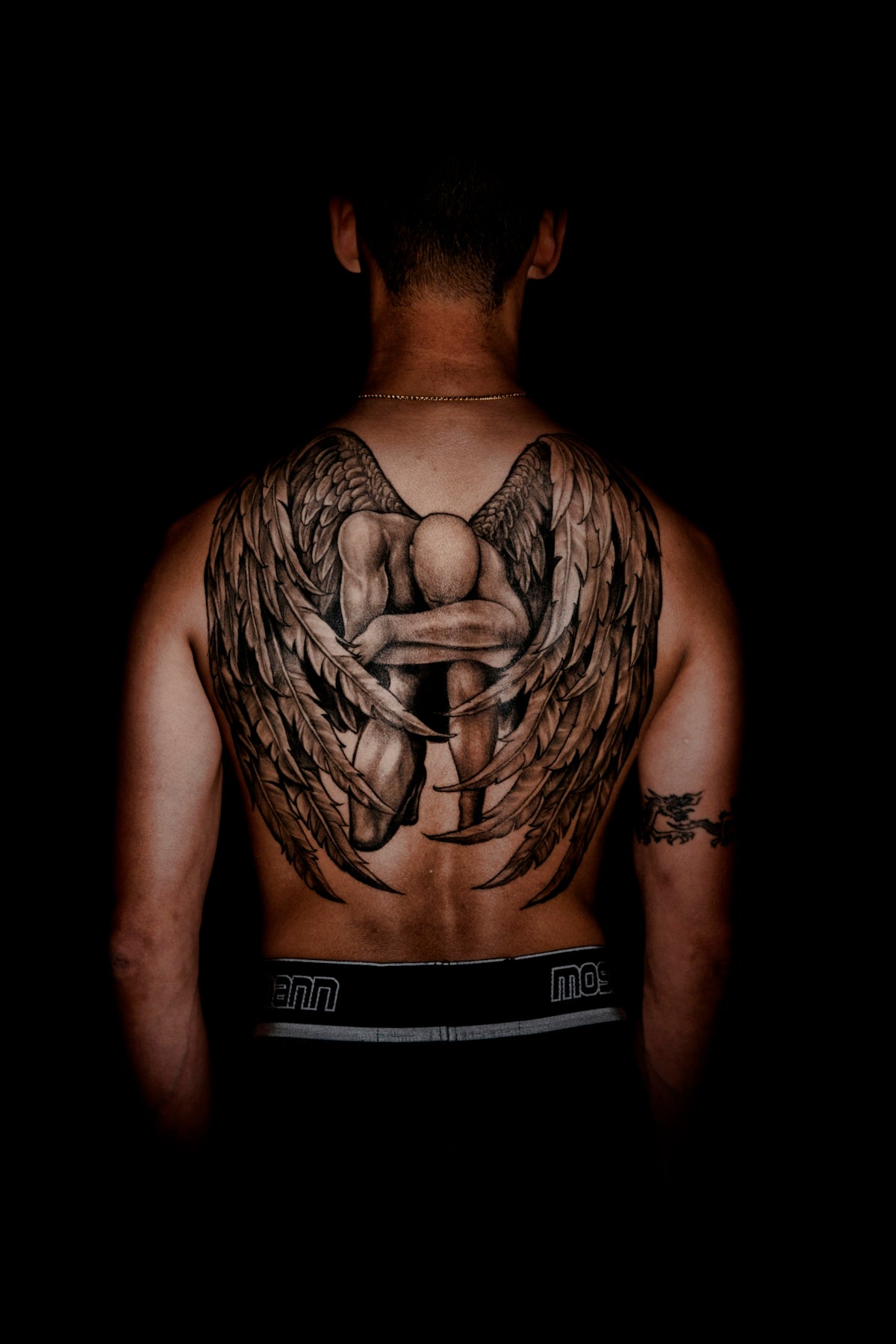
In the evolving world of tattoo artistry, staying at the cutting edge is vital. Whether you're an aspiring artist stepping into the realm of tattoo design or a seasoned professional aiming to enhance your skills, digital tools can significantly elevate your craft. With Procreate, an app that has become a powerhouse for digital artists, you can take your tattoo designs to an entirely new level. Here’s how you can start designing tattoos the right way using the best tools available: the PRO TATTOO KIT from TattooBrushes.com, renowned for setting a high standard in professional digital tattoo design.
Table of Contents
- Table of Contents
- Why Go Digital with Procreate?
- Essential Tools and Brushes for Tattoo Design
- Procreate Tattoo Brushes
- Best Tattoo Stencils in Procreate
- Realistic Tattoo Shading
- How to Enhance Your Tattoo Design Process with Procreate
- Step-by-Step Guidance for All Skill Levels
- Upgrade Your Tattoo Art Today
- FAQs
Why Go Digital with Procreate?
Procreate offers a range of features specifically geared towards helping artists create intricate and realistic tattoo designs. The app's flexibility and the ease of use enable artists to experiment with materials and techniques in ways traditional methods might not allow. Additionally, digital designs allow for easy modifications, saving both time and resources. When combined with specialized Procreate tattoo brushes, the possibilities are endless.
Essential Tools and Brushes for Tattoo Design
Procreate Tattoo Brushes
The key to mastering digital tattoo design in Procreate begins with selecting the right brushes. Procreate tattoo brushes are designed specifically to mimic the textures and lines found in traditional tattooing. Tattoo Brushes offers a selection of meticulously crafted options for any style, from smooth gradient shading to the crispness of geometric lines.
For artists seeking to mimic realistic shading, referencing specific techniques is critical. Our guide on Realistic Shading Techniques with Procreate Tattoo Brushes will provide you with expert insights on achieving lifelike depth and contrast in your designs.
Best Tattoo Stencils in Procreate
Creating precise and workable stencils is another cornerstone of professional tattoo design. Procreate enables artists to make detailed stencils that translate well on skin. By utilizing the best tattoo stencils Procreate techniques, you ensure every design element is clearly defined and easily transferable to the physical process of tattooing. This strategy not only streamlines the workflow but also helps in achieving flawless detail and satisfaction for the client.
Realistic Tattoo Shading
An integral aspect of tattoo artistry is realistic shading. Realistic tattoo shading Procreate tools are essential for tattoos that demand a life-like appearance. The use of gradients, shadows, and varied pressure sensitivity settings helps in creating depth and dimension. Dive deeper into effective shading strategies by exploring our article on Realistic Shading Techniques.
How to Enhance Your Tattoo Design Process with Procreate
Step-by-Step Guidance for All Skill Levels
- Set Up Your Canvas: The first step is creating a canvas that mimics a realistic skin texture. Procreate allows for customization of canvas settings, ensuring you replicate the nuances of human skin.
- Select the Right Brushes: Choose brushes that align with your design style—whether it's traditional, neo-traditional, new school, or any specific custom designs. The Top Procreate Tattoo Brushes can provide the perfect starting point.
- Establish Your Stencil: Begin with a light sketch layer to outline the tattoo design. This layer acts like a tattoo stencil, ensuring precision in placement. Use the top-notch Procreate tools for stencils from TattooBrushes.com to streamline your process.
- Apply Shading and Detailing: By utilizing different pressures and angles with your stylus, add shading and detailing. The aim is to achieve a seamless blend that mimics real-life tattoo shading techniques.
- Finalize Your Design with Line Work and Highlights: The final steps involve sharpening lines and accentuating highlights to make the design pop. Often, subtle changes at this stage add to the tattoo’s realism.
Upgrade Your Tattoo Art Today
The move to digital tools doesn't replace traditional tattooing techniques but enhances them. By incorporating digital tattoo design into your workflow, you open up endless possibilities for creativity and precision. Ready to transform your art and explore Procreate tools that make you feel like a pro? Head over to TattooBrushes.com to discover how the PRO TATTOO KIT can elevate your designs to professional standards. Don't just stay with the trends—set them.
With the right tools and guidance, upgrading your tattoo art is not just a possibility; it's a guarantee. Embrace these digital advancements and watch your artistry reach new heights.
FAQs
What is Procreate and why is it popular among tattoo artists?
Procreate is a powerful digital illustration app designed for iPad, known for its user-friendly interface and extensive features. Tattoo artists love it for its ability to create detailed designs, easily manipulate layers, and utilize a variety of brushes, making it an ideal tool for digital tattoo design.
What are some must-have brushes for tattoo design in Procreate?
Some essential brushes for tattoo design include the inking brushes for crisp lines, texture brushes for shading, and specialty brushes for various tattoo styles like dot work or watercolor effects. Customizable brushes can also help mimic traditional tattooing techniques.
Can I use Procreate for creating stencil designs?
Yes, Procreate is great for creating stencil designs. You can easily adjust the opacity of your layers, simplify your design to black and white, and export your final stencil or reference images directly from the app.
Is there a way to upload reference images into Procreate?
Absolutely! You can import reference images into Procreate by using the "Insert a Photo" option. This allows you to work directly over the reference, making it easy to trace or draw inspiration while maintaining your design's originality.
What are some tips for beginners using Procreate for tattoo design?
Begin by familiarizing yourself with the app’s interface and tools. Watch tutorials to understand how to use layers effectively, practice with various brushes, and start with simple designs. Gradually increase the complexity of your work as you build confidence and skills.
Can Procreate be used for collaborating with clients?
Yes, Procreate allows users to share their designs easily. You can export your artwork in various formats, such as PDF or PNG, and share it with clients for feedback. The app even supports drawing and editing in real-time during collaborative sessions.
How can I keep my Procreate tattoos organized?
You can organize your tattoo designs in Procreate by creating different canvases for each project or client. Use folders to group related artwork and label your files clearly for easy access. Regularly backing up your files to cloud storage is also a good practice.
Is Procreate available on devices other than iPad?
Currently, Procreate is exclusively available on iPad, and there is no direct desktop version. However, some artists use Procreate Pocket on their iPhone, though its features are more limited compared to the iPad version.
What file formats can I export my tattoo designs in from Procreate?
Procreate allows you to export your designs in multiple file formats, including PNG, JPEG, PDF, and PSD. This versatility makes it easy to share your work with clients or upload it to social media, ensuring your designs maintain the quality you intended.

Leave a comment
This site is protected by hCaptcha and the hCaptcha Privacy Policy and Terms of Service apply.